

FramePack Studio Video Generator
Choose a current video model, use only the text, image, reference, audio, and output controls shown by its form, then inspect the returned clip.
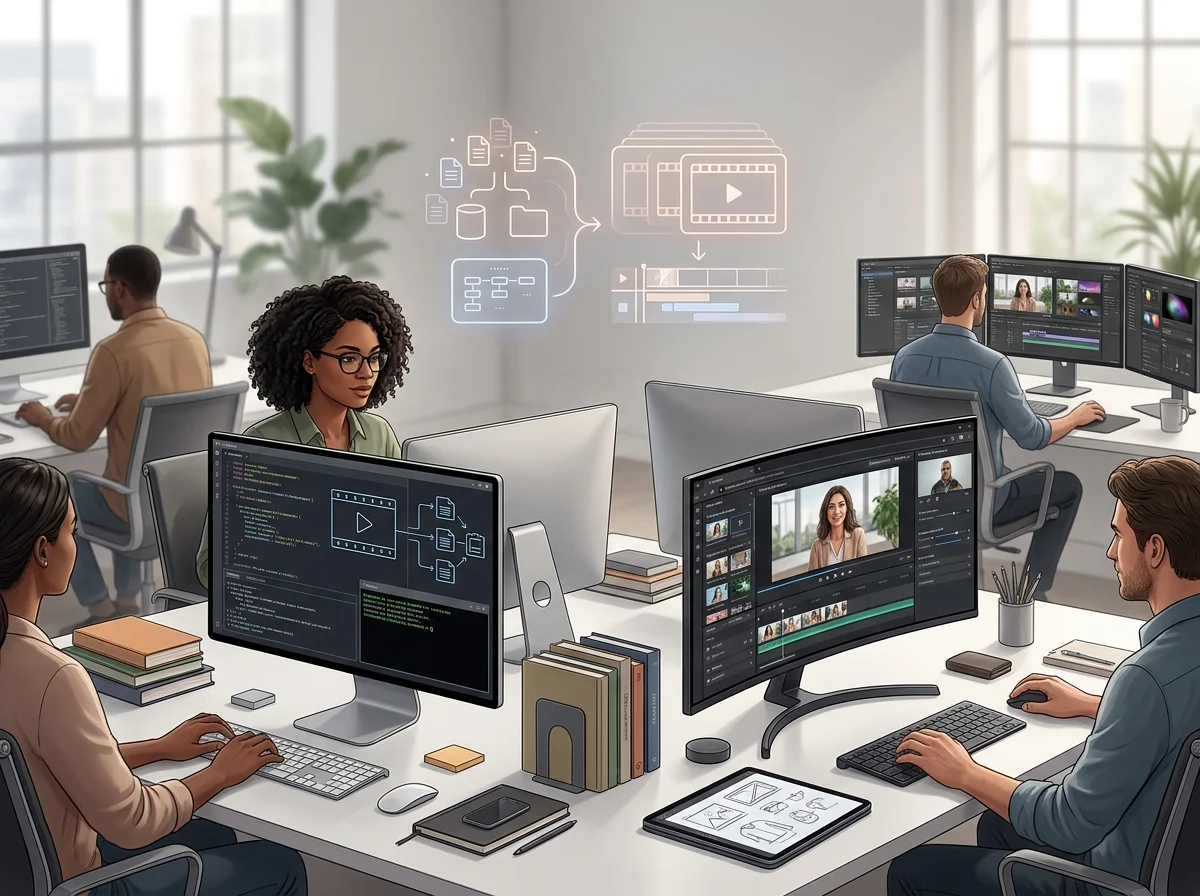
How the FramePack Studio Video Generator Works
Text-to-video when you are exploring, image-to-video when the opening frame matters - and a loop for keeping what worked.
Describe the shot, not just the subject
Camera move, lens and duration shape a clip far more than the subject noun does.
Start from a still when framing matters
Image-to-video fixes the opening frame, which is the most reliable way to control composition.
Keep clips short and specific
One movement per clip survives generation far better than a sequence of events crammed into a single prompt.
Iterate on one variable
Change the camera move or the duration alone, so improvements are attributable.
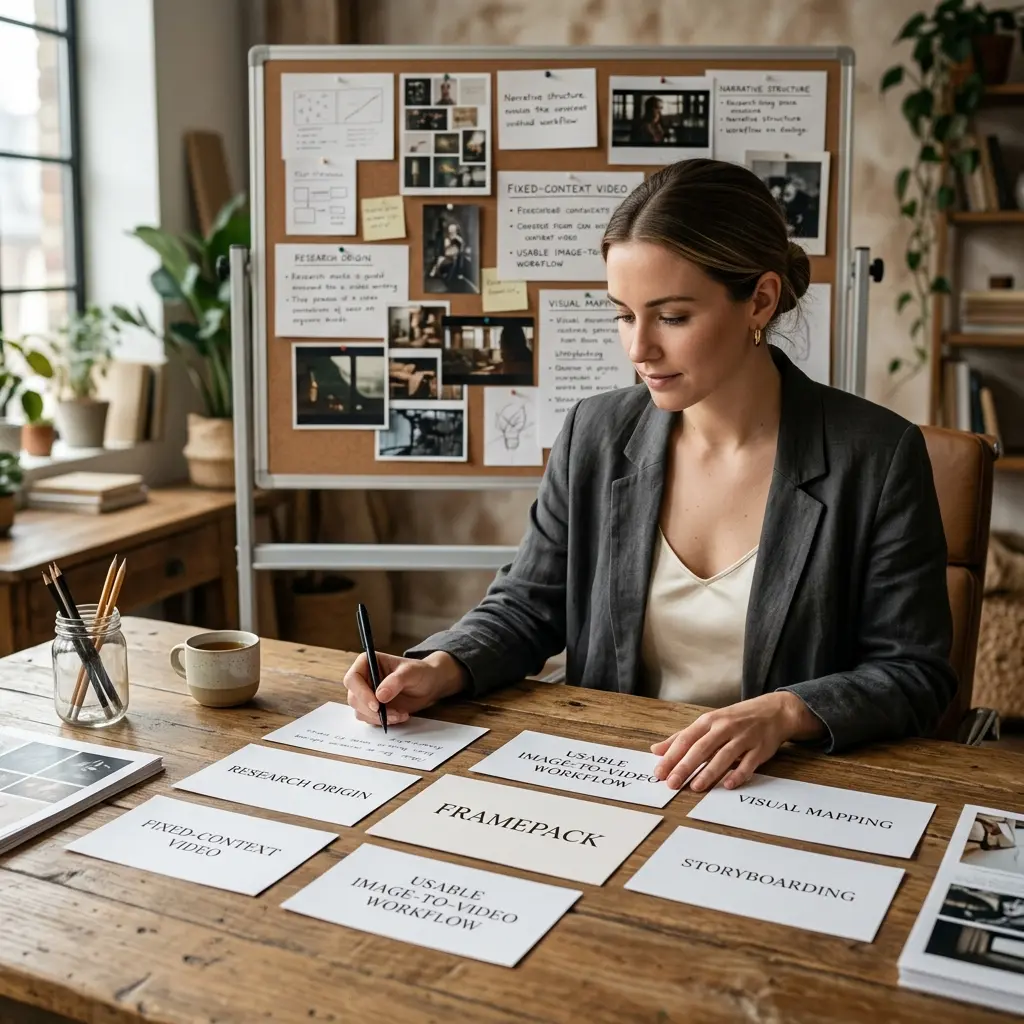
Three Ways People Start a Clip
The opening move depends on how much of the shot you have already decided.
Why the browser
Why Generate Video in the Browser
No GPU to rent, no environment to build, and no render queue to babysit.
No local GPU
Generation runs server-side, so hardware stops deciding what you can attempt.
Nothing to install
No environment, no model weights, and no versions to reconcile before the first clip.
Stills and motion together
Generate a frame and animate it without leaving for another tool and coming back.
Attempts stay comparable
Earlier clips remain available while you decide which direction to keep.
How to Use the FramePack Studio Workspace
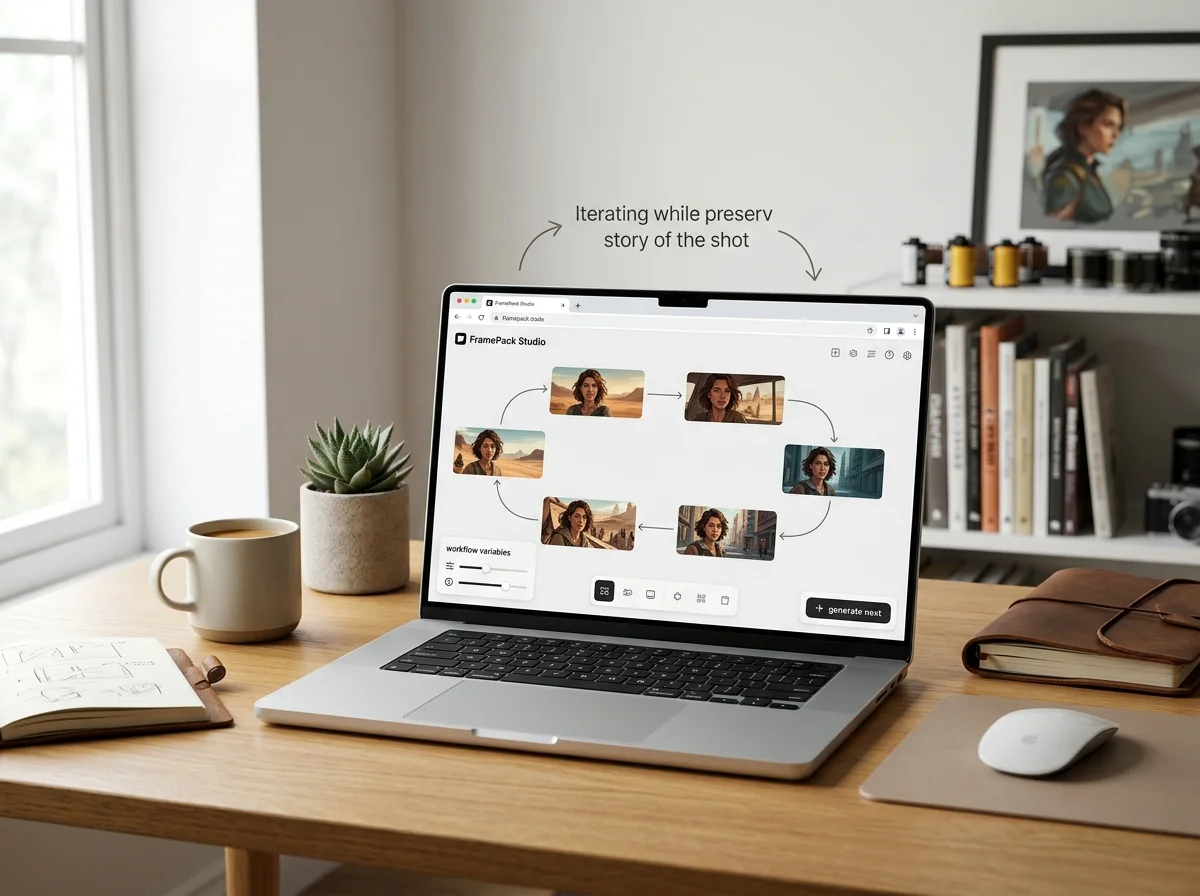
A simple browser loop for exploring FramePack AI workflows without losing the story of the shot.
Start with the scene goal
Define the clip, motion, subject, and camera idea before you start generating.
Attach still references when composition matters
Use image inputs when you want stronger first-frame control or more stable art direction.
Generate and compare iterations
Run prompt-led and reference-led versions side by side so the best direction becomes obvious faster.
Document the winning setup
Keep the prompt, reference frames, and results together so your next FramePack Studio session starts from something real.
What the FramePack Studio Webapp Now Includes
The generator, your render history and the docs all live in the same browser tab.
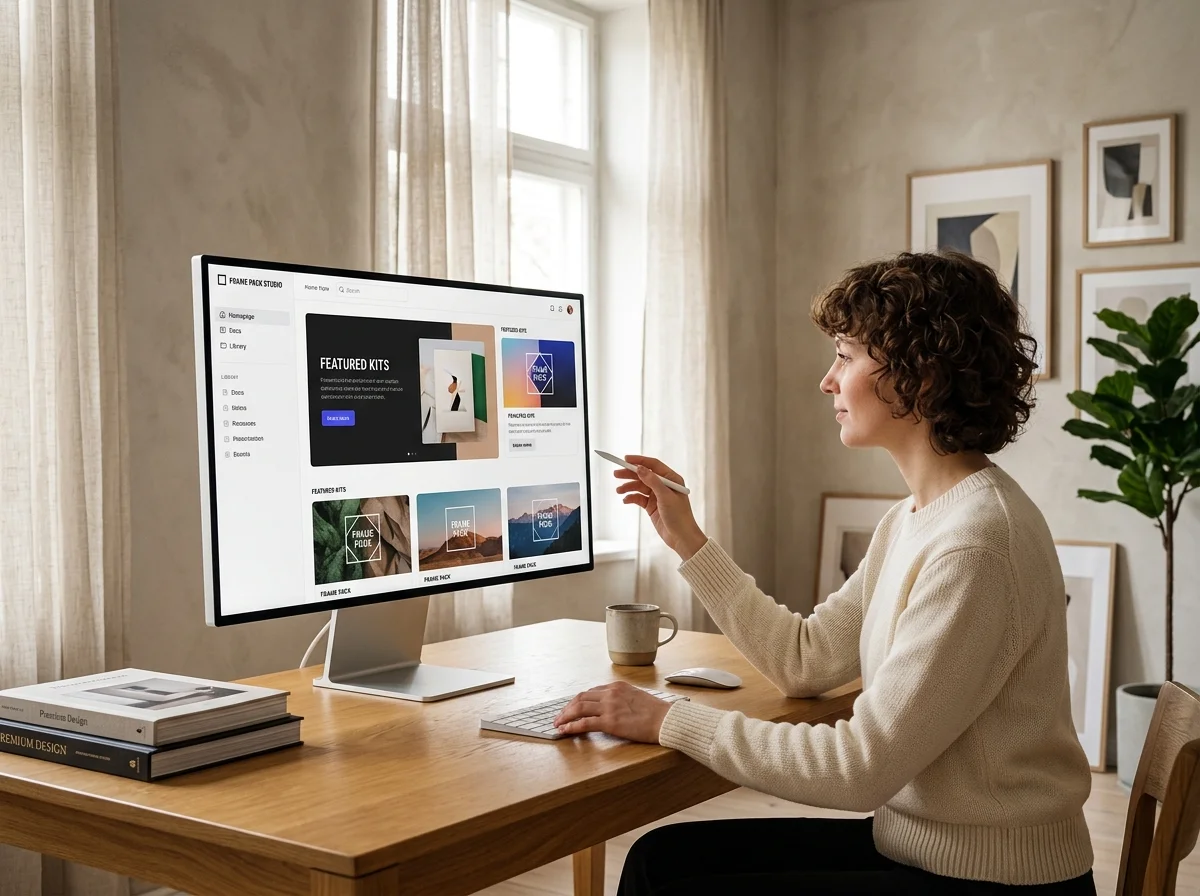
One place for the whole workflow
Sign in, generate, watch a render finish, and read the docs without leaving the workspace.
Reference-led generation
Start from an image and describe the motion, or write the shot out in full and let the model set the opening frame.
Video, image and music in one workspace
The image and music generators sit beside this one, so a clip, its key art and its score all come out of the same workspace.
Read it in your language
Every page and the generator interface are translated across the languages this site serves.
What a run costs and returns
Available in the form today, each priced in the same credits.
Per run, depending on the model and length chosen.
Video covered per credited run, by model.
Includes a commercial licence for what you make.
The longest prompt every model on this page accepts.
Frequently Asked Questions About FramePack, FramePack AI, and FramePack Studio
The questions people ask most often about FramePack and about this site.
Generate Your First Clip
Bring a prompt or a still, set the format, and run a generation. The controls that change the result are on the page; the rest is iteration.
